Here is the code how to revers word or words in Visual Basic 2015 (all versions) and return the result in TextBox.
Dim yourword As String = "test word"
Dim revyourword As String = StrReverse(yourword)
TextBox1.Text = revyourword
Get more tutorials about TextBox control in Visual Basic 2015.
Showing posts with label TextBox control. Show all posts
Showing posts with label TextBox control. Show all posts
Friday, December 2, 2016

Friday, October 14, 2016
Restrict TextBox only to Numeric Input
Private Sub TextBox1_KeyPress(sender As Object, e As KeyPressEventArgs) Handles TextBox1.KeyPress
Select Case e.KeyChar
Case "0", "1", "2", "3", "4", "5", "6", "7", "8", "9", vbBack
e.Handled = False
Case Else
e.Handled = True
End Select
End Sub
Select Case e.KeyChar
Case "0", "1", "2", "3", "4", "5", "6", "7", "8", "9", vbBack
e.Handled = False
Case Else
e.Handled = True
End Select
End Sub
Wednesday, September 14, 2016
Insert data from TextBox and InputBox into ListBox
Insert data from TextBox into ListBox in Visual Basic 2015

PrivateSub btnAdd_Click(sender AsObject, e AsEventArgs) Handles btnAdd.Click
ListBox1.Items.Add(TextBox1.Text)
End Sub
Insert data from InputBox into ListBox in Visual Basic 2015

Private Sub Button2_Click(sender As Object, e As EventArgs) Handles Button2.Click
Dim myitemdata
myitemdata = InputBox(“Enter your Item”)
ListBox1.Items.Add(myitemdata)
End Sub
My Previews tutorial: Working with TextBox control in Visual Basic 2015
Tuesday, September 13, 2016
Working with TextBox control in Visual Basic 2015
In this tutorial I will create simple note taking software. Here I will cover all basic aspects of working with TextBox control in Visual Basic 2015.
Create the form as on the picture bellow!
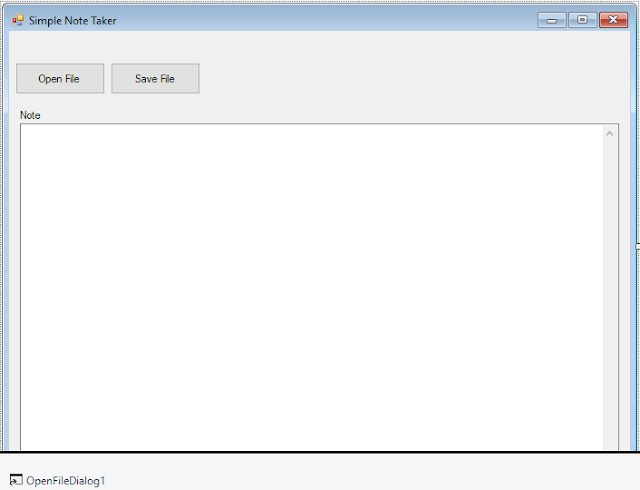
Controls properties are following:
TextBox1: .Name = txtNote .ScrollBars = Vertical
Button1: .Name = btnOpen
Button2: .Name = btnSave
Open Text Files in Visual Basic 2015 TextBox Control
To be able to open files in TextBox control we have to add OpenFile Dialog at first. In the picture bellow you see how to add it: Toolbox - OpenFileDialog. You just click on OpenFileDialog and go in the form - somewhere, left click on it and OpenFileDialog will be inserted automatically.
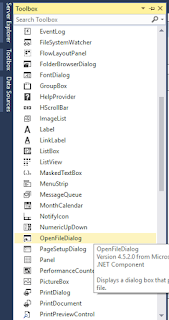
Here is the code for opening Text Files in TextBox control.
Private Sub btnOpen_Click(sender As Object, e As EventArgs) Handles btnOpen.Click
Dim oReader As StreamReader
OpenFileDialog1.CheckFileExists = True
OpenFileDialog1.CheckPathExists = True
OpenFileDialog1.DefaultExt = "txt"
OpenFileDialog1.FileName = ""
OpenFileDialog1.Filter = "Text Files (*.txt)|*.txt|All Files (*.*)|*.*"
OpenFileDialog1.Multiselect = False
If OpenFileDialog1.ShowDialog = DialogResult.OK Then
oReader = New StreamReader(OpenFileDialog1.FileName, True)
txtNote.Text = oReader.ReadToEnd
End If
End Sub
Save Text File from TextBox in Visual Basic 2015
First add SaveFileDialog in the form to be able to open Save Dialog and save the content from the textbox.
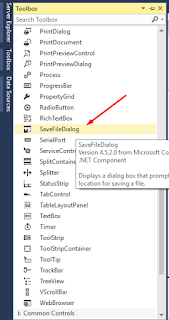
Here is the code to save the content from TextBox in Text File. I also added an option to save in other extension if you wish.
Private Sub btnSave_Click(sender As Object, e As EventArgs) Handles btnSave.Click
SaveFileDialog1.DefaultExt = "txt"
SaveFileDialog1.FileName = ""
SaveFileDialog1.Filter = "Text Files (*.txt)|*.txt|All Files (*.*)|*.*"
SaveFileDialog1.FilterIndex = 2
SaveFileDialog1.RestoreDirectory = True
If SaveFileDialog1.ShowDialog() = DialogResult.OK Then
IO.File.WriteAllText(SaveFileDialog1.FileName, txtNote.Text)
End If
End Sub
Create the form as on the picture bellow!

Controls properties are following:
TextBox1: .Name = txtNote .ScrollBars = Vertical
Button1: .Name = btnOpen
Button2: .Name = btnSave
Open Text Files in Visual Basic 2015 TextBox Control
To be able to open files in TextBox control we have to add OpenFile Dialog at first. In the picture bellow you see how to add it: Toolbox - OpenFileDialog. You just click on OpenFileDialog and go in the form - somewhere, left click on it and OpenFileDialog will be inserted automatically.

Here is the code for opening Text Files in TextBox control.
Private Sub btnOpen_Click(sender As Object, e As EventArgs) Handles btnOpen.Click
Dim oReader As StreamReader
OpenFileDialog1.CheckFileExists = True
OpenFileDialog1.CheckPathExists = True
OpenFileDialog1.DefaultExt = "txt"
OpenFileDialog1.FileName = ""
OpenFileDialog1.Filter = "Text Files (*.txt)|*.txt|All Files (*.*)|*.*"
OpenFileDialog1.Multiselect = False
If OpenFileDialog1.ShowDialog = DialogResult.OK Then
oReader = New StreamReader(OpenFileDialog1.FileName, True)
txtNote.Text = oReader.ReadToEnd
End If
End Sub
Save Text File from TextBox in Visual Basic 2015
First add SaveFileDialog in the form to be able to open Save Dialog and save the content from the textbox.

Here is the code to save the content from TextBox in Text File. I also added an option to save in other extension if you wish.
Private Sub btnSave_Click(sender As Object, e As EventArgs) Handles btnSave.Click
SaveFileDialog1.DefaultExt = "txt"
SaveFileDialog1.FileName = ""
SaveFileDialog1.Filter = "Text Files (*.txt)|*.txt|All Files (*.*)|*.*"
SaveFileDialog1.FilterIndex = 2
SaveFileDialog1.RestoreDirectory = True
If SaveFileDialog1.ShowDialog() = DialogResult.OK Then
IO.File.WriteAllText(SaveFileDialog1.FileName, txtNote.Text)
End If
End Sub
Subscribe to:
Posts (Atom)